Note
Go to the end to download the full example code.
Simulate flow in a static mixer#
This basic example shows how to launch PyCFX and then set up, run, and postprocess the CFX Static Mixer tutorial case in PyCFX.
Model overview
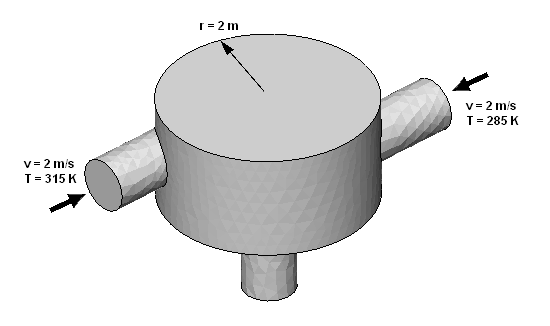
This example simulates a static mixer with two inlet pipes delivering water into a mixing vessel. The water exits through an outlet pipe.
Water enters through both pipes at the same rate but at different temperatures. The first entry is at a rate of 2 m/s and a temperature of 315 K. The second entry is at a rate of 2 m/s and a temperature of 285 K. The mixer radius is 2 m.
Workflow tasks
The static mixer example guides you through these tasks:
Set up a basic case in a PreProcessing session (CFX-Pre).
Run the CFX-Solver.
Perform basic postprocessing in CFD-Post.
Initial setup#
Perform required imports#
Perform the required imports. It is assumed that the ansys-cfx-core package has been
installed.
import os

import ansys.cfx.core as pycfx
from ansys.tools.common.example_download import download_manager
Download required files#
mesh_file_name = download_manager.download_file(
    "StaticMixerMesh.gtm",
    "pycfx/static_mixer",
    destination=os.getcwd(),
)
Preprocessing#
Start a PreProcessing session (CFX-Pre) and create a new case#
pypre = pycfx.PreProcessing.from_install()
pypre.file.new_case()
Import a mesh#
The StaticMixerMesh.gtm mesh file should already have been downloaded to the current working
directory earlier in this script.
pypre.file.import_mesh(file_name=mesh_file_name)
Set up the domain#
A default domain is created automatically when a new case is created.
default_domain = pypre.setup.flow["Flow Analysis 1"].domain["Default Domain"]
default_domain.fluid_definition["Fluid 1"].material = "Water"
default_domain.domain_models.reference_pressure.reference_pressure = "1 [atm]"
default_domain.fluid_models.heat_transfer_model.option = "Thermal Energy"
default_domain.fluid_models.turbulence_model.option = "k epsilon"
Set up the boundary conditions#
Add the first inlet boundary, specifying each setting in turn.
default_domain.boundary.create("in1")
in1 = default_domain.boundary["in1"]
in1.boundary_type = "INLET"
in1.location = "in1"
in1.boundary_conditions.mass_and_momentum.option = "Normal Speed"
in1.boundary_conditions.mass_and_momentum.normal_speed = "2 [m s^-1]"
in1.boundary_conditions.heat_transfer.static_temperature = "315 [K]"
Add the second inlet boundary by duplicating the first.
in1_state = default_domain.boundary["in1"].get_state()
default_domain.boundary["in2"] = in1_state
in2 = default_domain.boundary["in2"]
in2.location = "in2"
in2.boundary_conditions.heat_transfer.static_temperature = "285 [K]"
Add the outlet boundary.
pypre.setup.flow["Flow Analysis 1"].domain["Default Domain"].boundary.create("out")
out = pypre.setup.flow["Flow Analysis 1"].domain["Default Domain"].boundary["out"]
out.boundary_type = "OUTLET"
out.location = "out"
out.boundary_conditions.mass_and_momentum.option = "Average Static Pressure"
out.boundary_conditions.mass_and_momentum.relative_pressure = "0 [Pa]"
Set up the solver#
Configure the solver control settings.
solver_control = pypre.setup.flow["Flow Analysis 1"].solver_control
solver_control.advection_scheme.option = "Upwind"
solver_control.convergence_control.timescale_control = "Physical Timescale"
solver_control.convergence_control.physical_timescale = "2 [s]"
Set up the CFX-Solver to run in parallel using execution control.
exec_control = pypre.setup.simulation_control.execution_control
exec_control.solver_step_control.parallel_environment.start_method = "Intel MPI Local Parallel"
exec_control.solver_step_control.parallel_environment.maximum_number_of_processes = 2
Check for errors#
Check for physics messages to ensure the setup is consistent and no required settings are missing.
physics_messages = pypre.setup.get_physics_messages(severity="All")
if physics_messages:
    print(f"Physics messages: {physics_messages}")
Write the CFX-Solver input file#
This example uses a file-based workflow, where each of the three PyCFX components (PreProcessing, Solver, and PostProcessing) are run independently, with each component being initialized by a file written by the previous component where possible. This allows each component to be run separately, potentially on a different machine configuration, at a different time, or from a different Python session. In contrast, the Fourier Transformation Blade Flutter case example shows a workflow where the PyCFX components interact more directly.
Write the CFX-Solver input file and close the preprocessing session.
solver_input_file_name = "static_mixer.def"
pypre.file.write_solver_input_file(file_name=solver_input_file_name)
pypre.exit()
Run the solver#
Start a Solver session and launch the CFX-Solver#
Launch the CFX-Solver using the execution control settings applied in the preprocessing session. Only local CFX-Solver runs are supported.
pysolve = pycfx.Solver.from_install(solver_input_file_name=solver_input_file_name)
pysolve.solution.start_run()
Wait for the run to complete#
Wait for the run to complete and determine the results file name.
pysolve.solution.wait_for_run()
results_file = pysolve.solution.get_results_file_name()
pysolve.exit()
Postprocessing#
Start a PostProcessing session (CFD-Post)#
Start CFD-Post and load the results.
pypost = pycfx.PostProcessing.from_install(results_file_name=results_file)
Find the name of the case object that is automatically created.
case_names = pypost.results.data_reader.case.get_object_names()
if case_names:
    current_case = case_names[0]
else:
    raise RuntimeError("Loading results failed; no cases defined.")
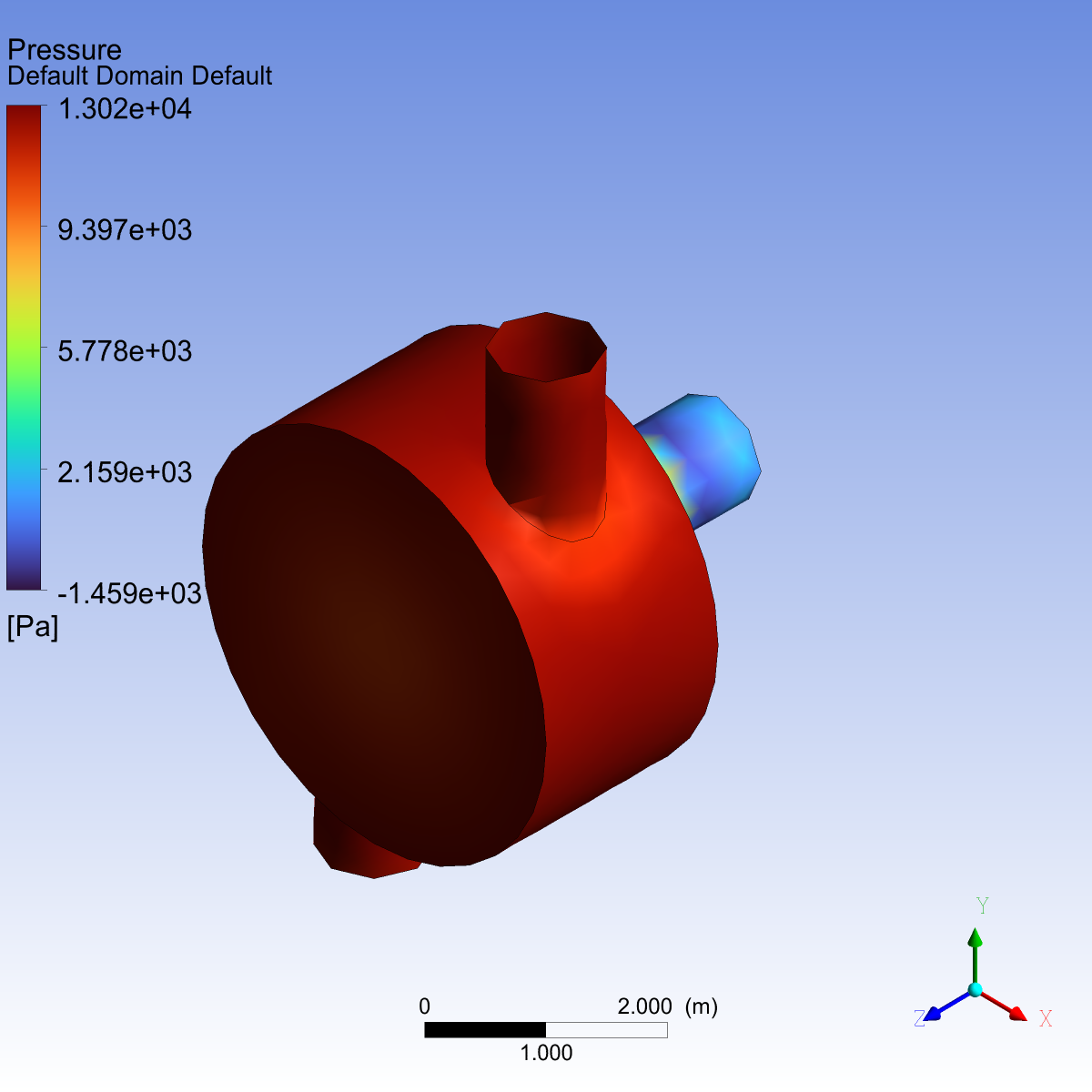
Plot contours on one of the boundaries#
pypost.results.data_reader.case[current_case] = {
    "boundary": {
        "Default Domain Default": {
            "colour_mode": "Variable",
            "colour_variable": "Pressure",
            "draw_contours": True,
        }
    }
}
current_case = pypost.results.data_reader.case[current_case]
default_boundary = current_case.boundary["Default Domain Default"]
default_boundary.show(view="/VIEW:View 1")
Create an image#
Set up the image.
hardcopy = pypost.results.hardcopy
hardcopy.hardcopy_format = "png"
hardcopy.image_height = 1200
hardcopy.image_width = 1200
hardcopy.use_screen_size = False
Save the image. Hide the boundary again so that it is not visible in subsequent images.
pypost.file.save_picture(file_name="static_mixer_boundary.png")
default_boundary.hide()
Create a plane#
By default, the plane geometry recalculates every time a setting is modified. When modifying several settings sequentially, suspend the plane object to avoid unnecessary intermediate calculations. Unsuspend the plane after completing the setup to reflect the latest settings.
pypost.results.plane.create("Plane 1")
plane = pypost.results.plane["Plane 1"]
plane.suspend()
plane.option = "ZX Plane"
plane.plane_type = "Slice"
plane.unsuspend()
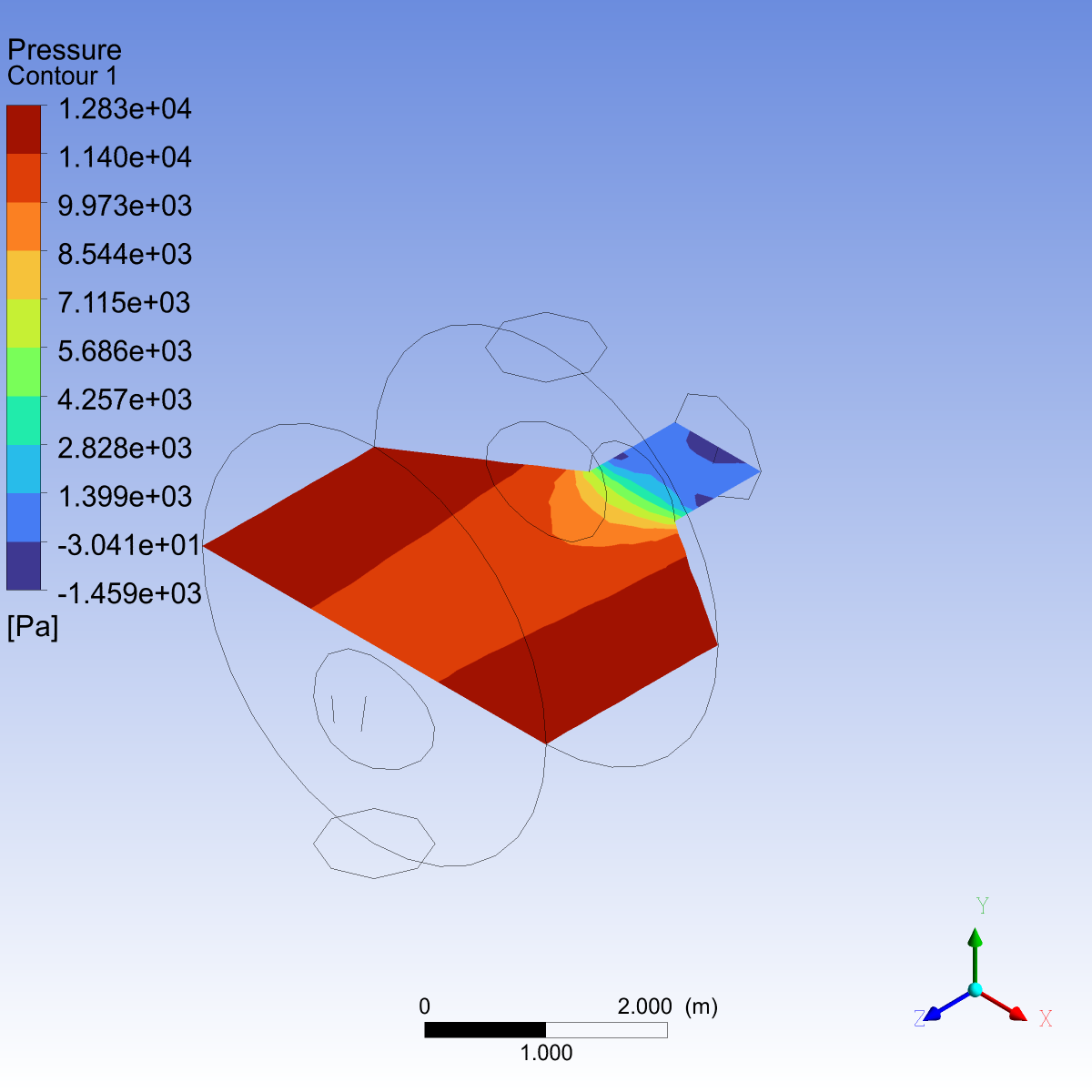
Create a contour#
Create a contour on the previously defined plane and save the image. Supplying all the settings at once by using a dictionary is another way to avoid unnecessary intermediate calculations.
pypost.results.contour["Contour 1"] = {
    "colour_variable": "Pressure",
    "location_list": "/PLANE:Plane 1",
    "number_of_contours": 11,
    "contour_range": "Local",
    "draw_contours": True,
    "fringe_fill": True,
}
contour = pypost.results.contour["Contour 1"]
contour.show(view="/VIEW:View 1")
pypost.file.save_picture(file_name="static_mixer_contour.png")
contour.hide()
Set up an expression#
Set up and evaluate an expression.
pypost.results.library.cel.expressions = {
    "Temperature Difference": {"definition": "maxVal(Temperature)@out - minVal(Temperature)@out"}
}
expressions = pypost.results.library.cel.expressions
print(f"Expressions list: {expressions.list()}")
print(f"Expression definitions: \n{expressions.list_properties()}")
temperature_difference = expressions["Temperature Difference"].evaluate()
print(f"Temperature difference: {temperature_difference}")
Close the postprocessing session#
pypost.exit()